
ThreatConnect (now Dataminr)
Redesign of Threat Graph from 60% usage decline to 73% monthly active usage
The Threat Graphs purpose was to allow cyber security analysts a way to visualize threat intelligence relationships for investigations, but the feature was experiencing a 60% decline in usage. I successfully redesigned the core threat visualization experience, incorporating our AI/ML CAL data layer resulting in 73% monthly active usage, 40% reduction in investigation time, and $2.3M in prevented customer churn.
Cybersecurity UX Innovation
Award at RSA 2022 Conference
Market Leader
Award
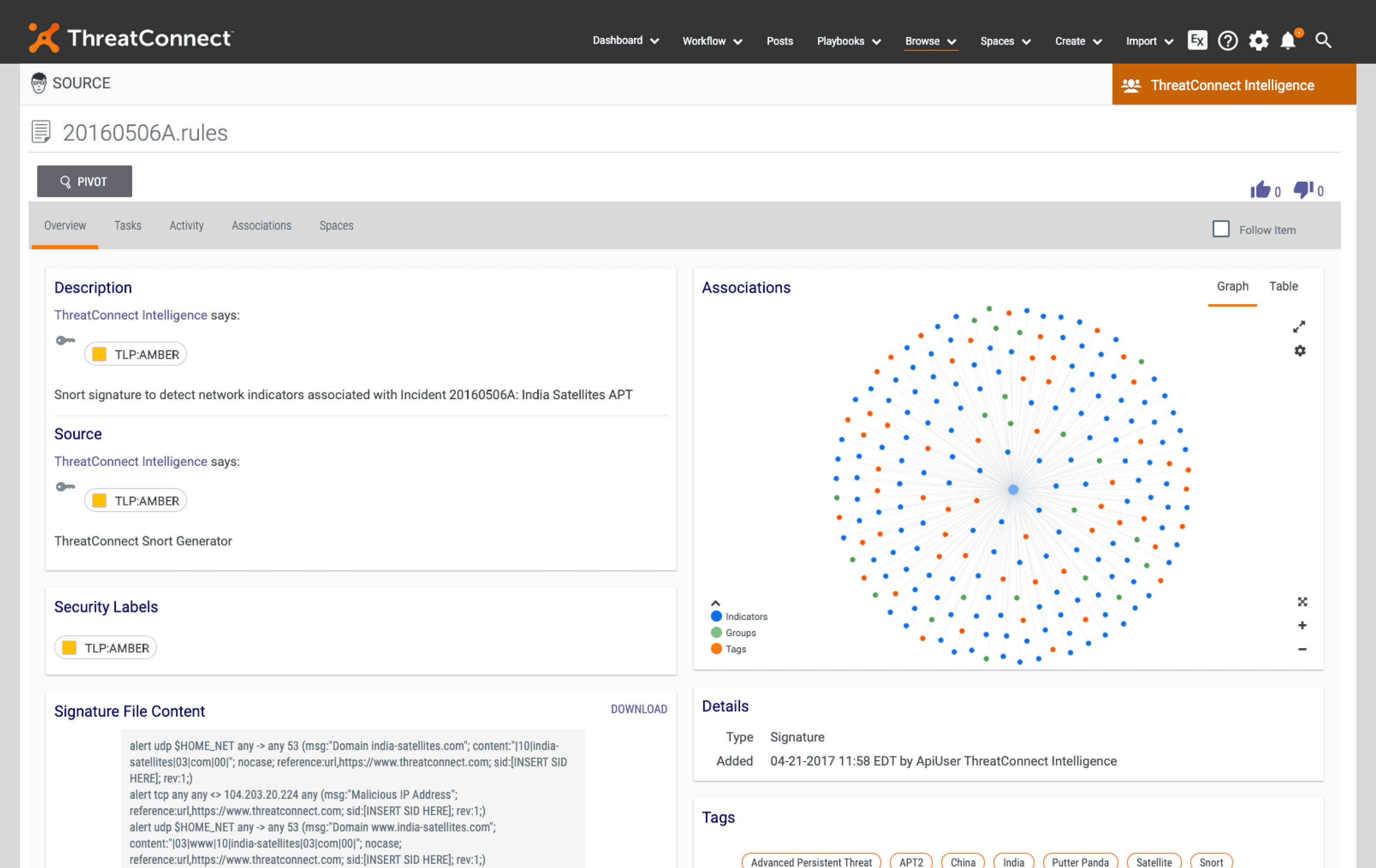
Before redesign
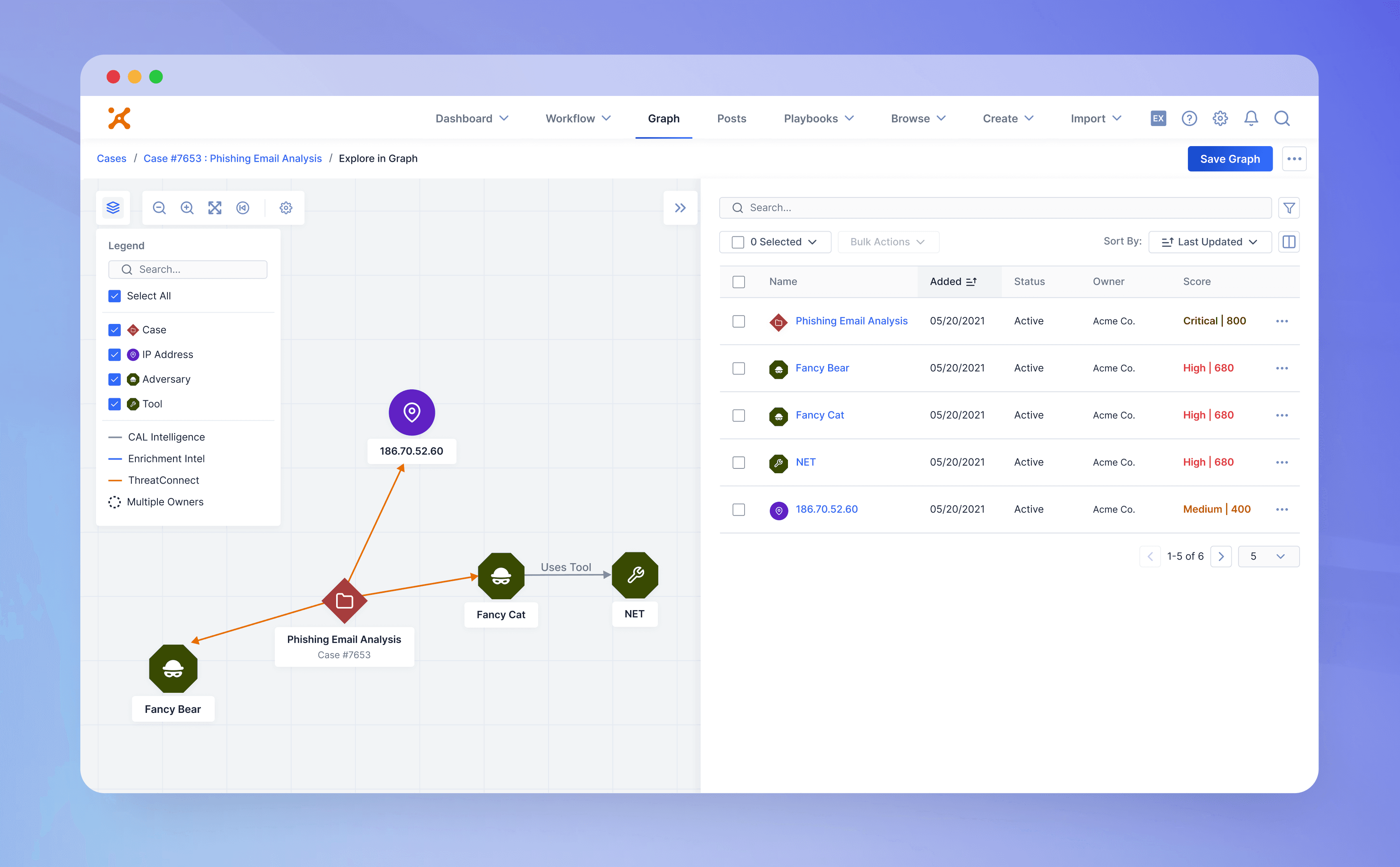
After redesign
Problem
ThreatConnect's Threat Graph was experiencing a usage declines of over 60% in just 18 months after launch. This put 23% of enterprise customers at churn risk, who cited poor visualization as a primary reason for not using the graph. We found that analysts were abandoning the graph for third party tools.
Through stake holder interviews and customer feedback analysis, I identified the following core issues:
1. Limited visibility: The graph was confined to 25% of screen real estate in the upper right hand corner
2. No visual hierarchy: Impossible to distinguish between data types, relationships, and threat levels.
3. Missing context: No way to understand why two pieces of data were connected.
4. Workflow disruption: Couldn't save, share, or export data.
5. Poor performance: Slow loading times when threat analysts used large data sets.
Part of the initiative was to incorporate the research team's CAL™ (Collective Analytics Layer), a crowdsourced, global threat intelligence engine. It aggregates anonymized telemetry, billions of global indicators, and data points to provide real-time context and global threat scores on indicators like IP addresses and domains.
Research
I conducted in-depth interviews with internal analysts and Fortune 500 customer analysts, exploring investigation processes, pain points, and tool preferences, with findings tracked in Airtable.
To gain deeper insights into real-world usage, I conducted contextual inquiry sessions where I observed 6 live threat investigations, documenting analysts workflows, their workarounds, and moments of friction that weren't captured in interviews alone.
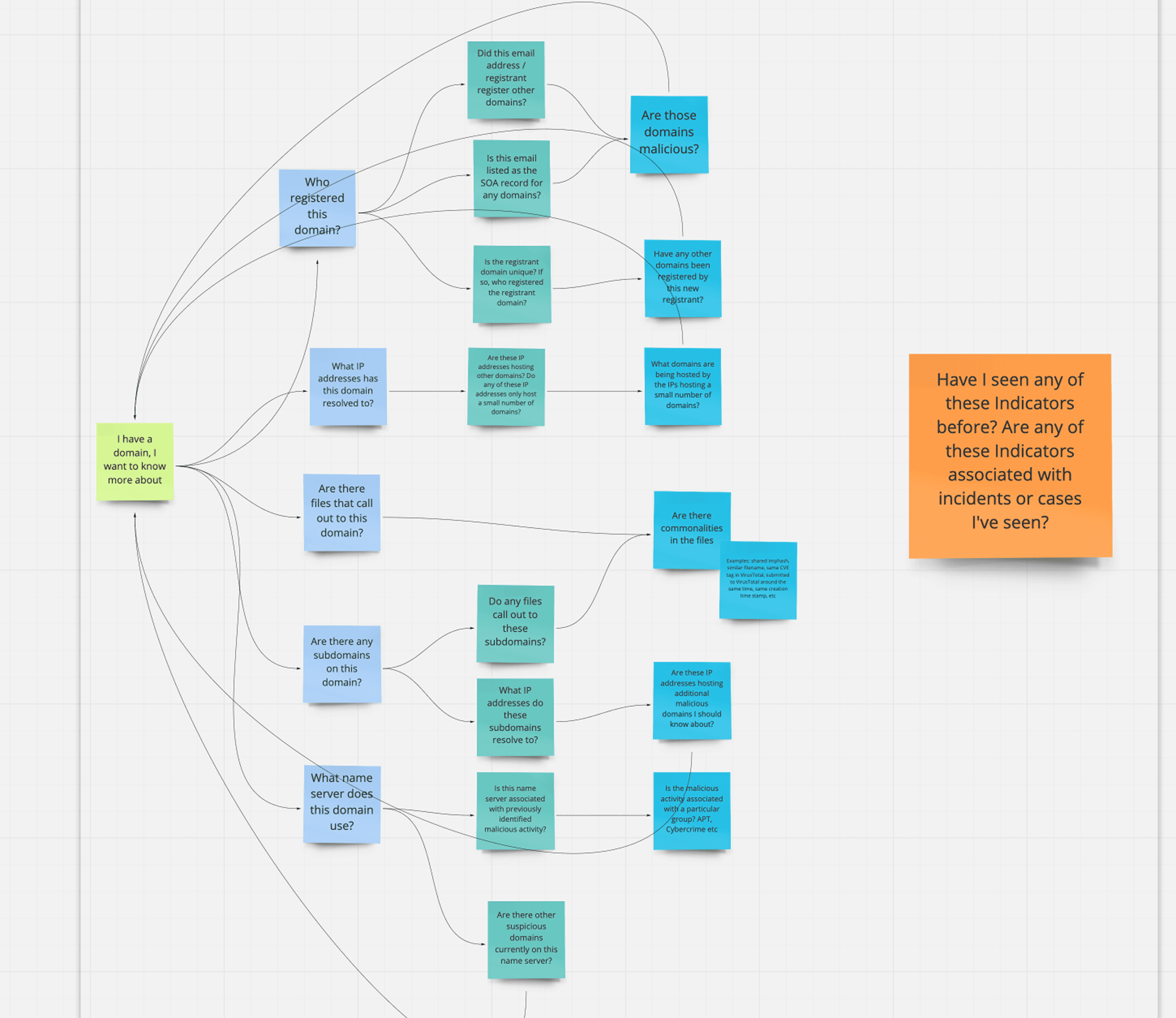
Working session on how an analyst investigates, which functioned like solving a mystery
Insights

Team workflows

Context and trust


Primary gap -
no way to take action
Explorations and Testing
Usability testing
I ran 3 rounds with 18 participants total, using task-based scenarios with realistic threat data. Measured completion rate, time-on-task, and error recovery. I was able to test several layouts.
Wireframes to test layout and functionality

Iterations
Added bulk selection after 83% of users expected it
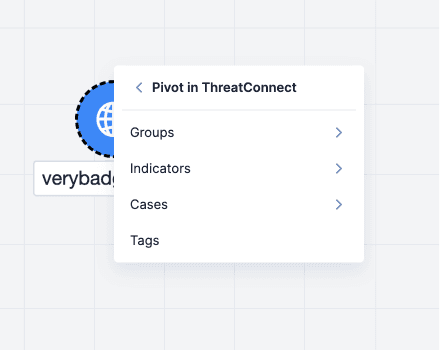
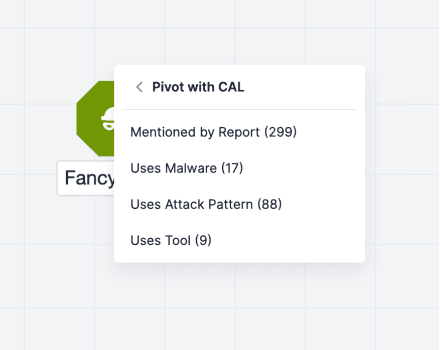
Changed the pivot pattern from a sidebar search to a right-click nested card
Added search and pagination once users struggled to find specific indicators in long result sets
Let users control which columns appear in the details panel, so they can surface the right data at each stage
Consolidated button controls at the top
Through research sessions we tested what visuals meant to each analyst and creating a visual language for the graph

Pivoting on over a Billion indicators
Example of the query and pivot pattern explored early on.

Single node pivoting
Example of the pivot pattern using CAL AI Data in the graph


Final Solution
Full screen graph experience
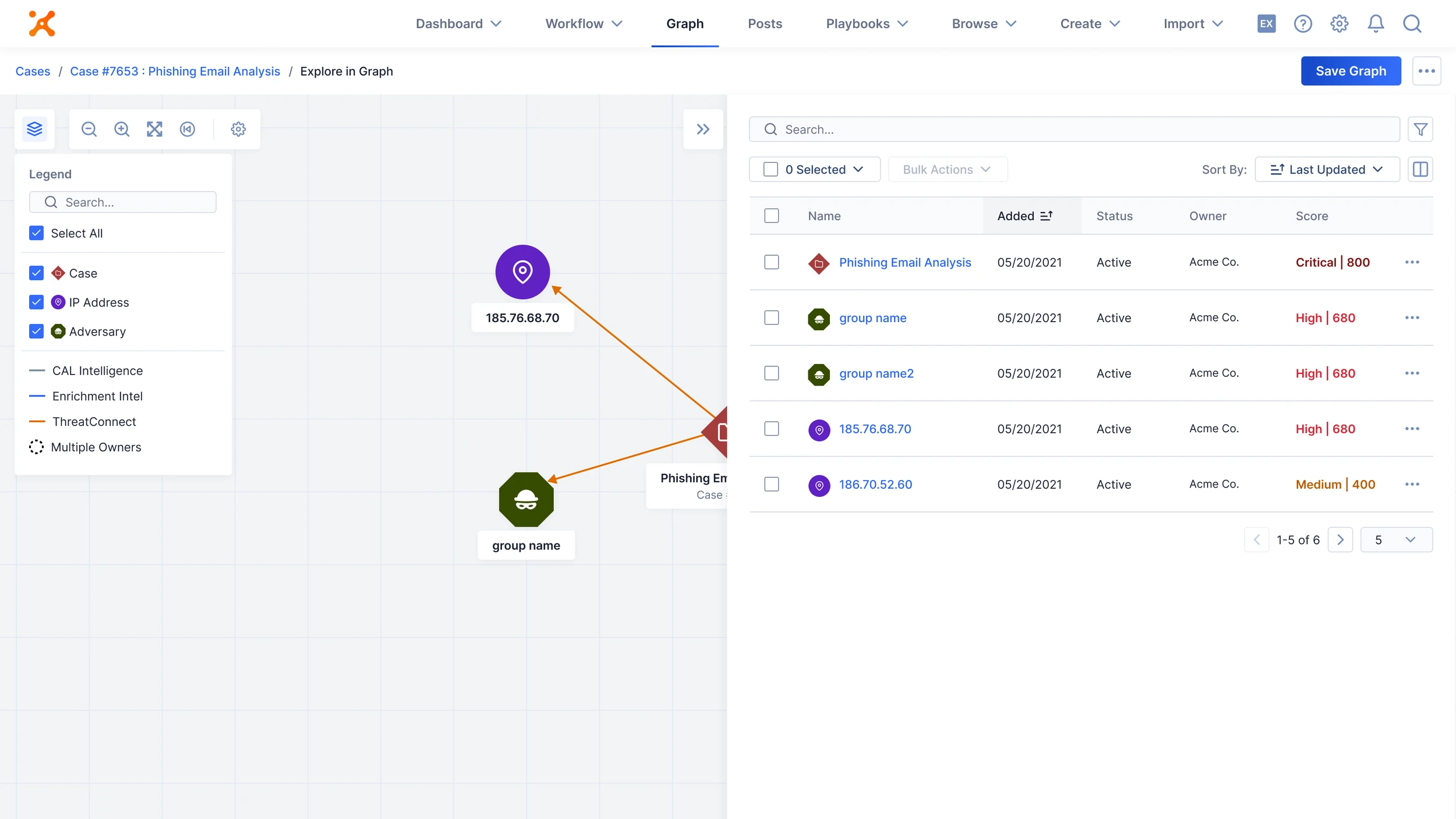
Expanded to full viewport for maximum data visibility, accessible via a new tab in the nav titled, “Graph”. Analysts can access from any piece of intel in the platform.
A legend for analysts to control what is viewed on the graph. Pairing back information is extremely important to reduce visual noise. Selecting a type of intel to show or not show, helps analysts narrow down their investigation.
Zoom and pan controls optimized for large datasets, with a zoom to fit and restore layout option if data becomes too spread out.
The final UI strategically positions controls in the top left, includes contextual breadcrumbs for multi-entry navigation, and key actions.

An interactive legend onboards new users while helping experienced analysts filter noise, and a collapsible right panel handles advanced filtering and bulk actions. The score comes from CAL and allows analysts to sort by most critical inidicators.
Tooltips and menus for the UI
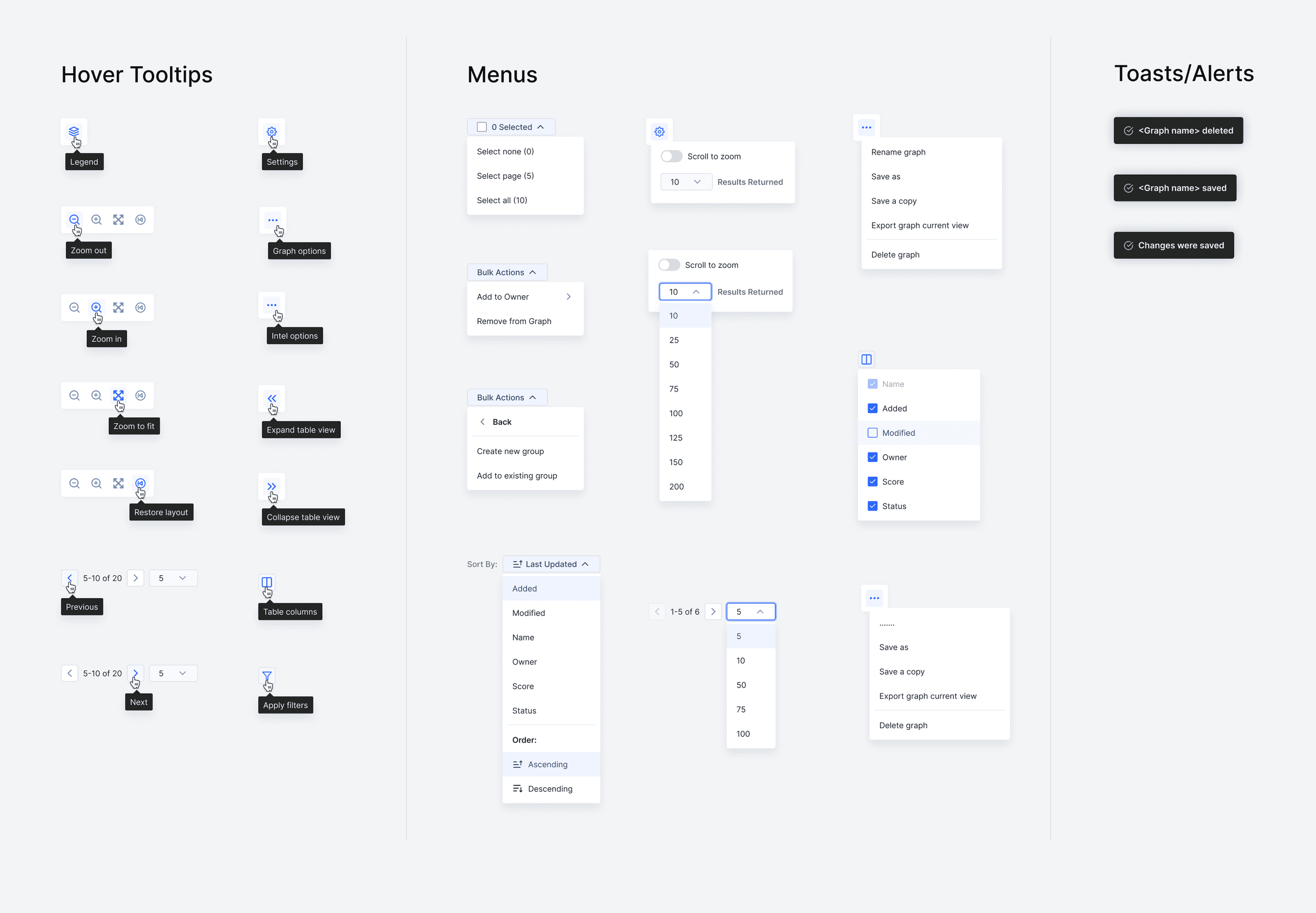
Dialogs and overlays including filters

Save or share
View saved investigations from one place with most recent graphs located at the top with a snapshot view
Edit a previously saved graph so the graph evolved with an analysts investigation over time
Export to PDF/PNG for executive reporting and documentation
Overview the graph landing page with all graph files

Ability to save within the graph view

Search
Advanced search filters available in table view

Bulk actions as well as user control over what data is visible from the side panel

Connecting to the rest of the platform
View a case in the graph from the case view
Run a playbook for full automation on an indicator
Add associations to a piece of intel from the graph
As a pivot option analysts can select a playbook automation within the graph

As a pivot option analysts can add new indicators/ data into the graph

Results and Impact
"The icon system is pure gold. We can finally distinguish between threat types at a glance.”
Senior Threat Analyst
Financial Services
"Investigation time cut in half. The AI insights help us focus on real threats instead of the noise."
Security Ops Manager
Tech Company
"This actually has me excited and I'd prefer to use this to [competitor name]. The visual clarity is exactly what we needed."
CISO
Fortune 500 Customer